Getting Started with Payroll in ChildPilot (Powered by Gusto)
Running a childcare center is no small feat. Between caring for families, supporting staff, and keeping things on track, payroll shouldn’t be another headache. That’s where ChildPilot and Gusto come in.
Your staff clocks in, payroll runs. No spreadsheets, no tax stress, no wasted time. Just more hours back in your day to focus on kids, families, and your community. With ChildPilot + Gusto, timesheets flow seamlessly into Gusto, the #1 people platform for small businesses. The result? Accurate paychecks, automatic tax filings, flexible payment options, and easy self-service for your team.
And here’s the best part: new ChildPilot customers get 3 months of free payroll. Fast, reliable, stress-free payroll — so you can run your business with confidence (and maybe a little extra peace of mind).
Why Gusto Works for Childcare
With Gusto, you can manage payroll and HR in one simple platform:
- Automatic tax filing: Federal, state, and local taxes handled for you.
- Year-end peace of mind: W-2s and 1099s filed without the paperwork scramble.
- Flexible pay options: Direct deposit or checks, whatever works best for your team.
- Built for childcare teams: Supports different pay rates, schedules, and roles.
- Benefits made simple: Health, retirement, and workers’ comp in one place.
- Self-service access: Staff can grab pay stubs, tax forms, and personal details anytime.
When paired with ChildPilot, it gets even better: timesheets and employee info flow directly into Gusto. No duplicate entry, no mistakes, just accurate payroll every time.
Where to Find It
Access the Gusto payroll integration from the Billing tab in the top navigation bar of your ChildPilot account. From here, you can review timecards, confirm hours, and send them to Gusto in just a few clicks.
1. Connecting ChildPilot to Gusto
To Create a New Gusto Account:
- Log in to ChildPilot (web version recommended).
- From the top navigation bar, click Billing → Manage Billing → Setup Payroll Connection.
- Click Integrate with Gusto.
- Follow the setup process and complete all required details and prompts.
- Once your Gusto account is created, return to ChildPilot.
- Important: You must still click Existing Gusto Account in the Setup Payroll Connection screen to establish the link.
- Sign in to Gusto when prompted and select the daycare to connect.
- Click Authorize to allow ChildPilot access to your Gusto data.
💡 If you don’t see the Billing tab, ensure your account has administrator access.
To Connect an Existing Gusto Account:
- Log in to ChildPilot (web version recommended).
- From the top navigation bar, click Billing → Manage Billing → Setup Payroll Connection.
- Sign in to Gusto when prompted.
- If you manage multiple businesses, choose the correct daycare (e.g., “Sunshine Daycare”).
- Click Authorize to allow ChildPilot to access your Gusto employee and payroll data.
- Return to ChildPilot — your Billing page should now display Gusto Payroll.
2. Syncing Information Between ChildPilot and Gusto
Automatic Sync
ChildPilot automatically syncs your employee and payroll data on page load, ensuring you always have the most current information without extra steps.
Manual Sync
Use a manual sync when you need to update employee or timesheet data right away.
For Employees:
- Go to Employee Connections in ChildPilot
- Click Sync Now to pull updates to Gusto
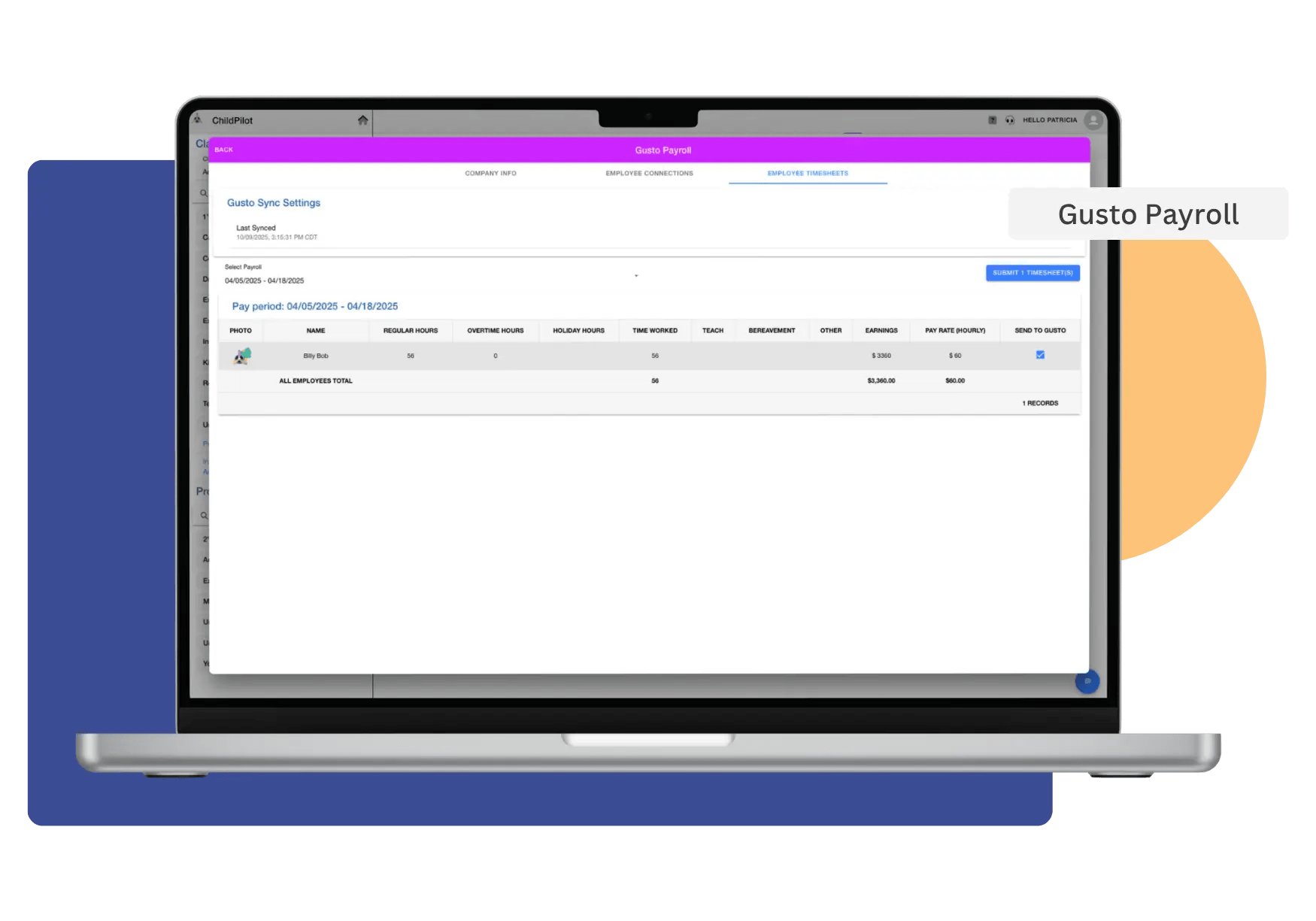
For Timesheets:
- Go to Employee Timesheets.
- Use the Submit Timesheets form to send work hours to Gusto.
💡Tip: If employee names in ChildPilot match exactly with those in Gusto, the system will automatically suggest the correct mapping to save time.
Submitting Timesheets
- In Employee Timesheets, select the checkbox for employees whose hours you want to submit.
- Click Submit Timesheets — ChildPilot will format times correctly for Gusto based on your time zone.
- Look for a confirmation message or verify in Gusto’s Time Tracking section.
💡 Always review time entries before sending them to Gusto to ensure accuracy.
4. Running Payroll in Gusto
Once your timesheets are submitted from ChildPilot, payroll is ready to process in Gusto.
- Log in to your Gusto account.
- Navigate to Payroll.
- Review the imported hours from ChildPilot.
- Make any final adjustments if needed.
- Follow Gusto’s process to run payroll.
💡 This final step ensures your staff is paid accurately and on time.
5. Viewing Payroll History
You can access past payroll data in ChildPilot at any time.
Select the Payroll History tab to view the processed date, check date, gross pay, taxes, benefits, other deductions, and net pay.
💡 Keeping a record of past payroll runs makes it easy to handle audits, reporting, and tax inquiries.
6. Troubleshooting Sync Issues
Gusto Connection Expired (Access Denied)
Symptom: Error message like “Access denied” or “Failed to sync”
Solution:
- Go to Billing → Manage Billing → Setup Payroll Connection
- Sign in to Gusto again and re-authorize
- Retry your sync or submission
Too Many Sync Attempts
Symptom: Error message like “Too many requests”
Solution:
- Wait — ChildPilot will retry automatically after a short pause
- If it persists, contact support: ChildPilot Support
Incorrect Shift Times
Symptom: Timesheets in Gusto display incorrect times (e.g., 3:00 AM instead of 8:00 AM)
Solution:
- Check that times are entered in the correct AM/PM format and dates are accurate.
- Update the timesheet and resubmit.
- Verify in Gusto.
By connecting ChildPilot with Gusto, you’re creating a seamless bridge between your childcare management and payroll systems. This means less time spent on repetitive data entry, fewer errors, and more confidence that your team is paid accurately and on time.
Once your integration is set up, payroll becomes a quick, streamlined process — letting you focus on what truly matters: supporting your staff and running your childcare program with ease.
If you run into questions along the way, our support team is here to help you keep everything running smoothly.
FAQs
Check Billing → Manage Billing If it says, Gusto Payroll, you’re all set. Try submitting a test timesheet to confirm.
If you see an error like Invalid shift times, double-check that times are inputted correctly on the employee’s profile. Re-submit the timesheet.
Yes, but each daycare needs its own connection. In the Gusto login page, choose the correct daycare during the Connect to Gusto step. Repeat for each daycare.
This means ChildPilot is sending too many updates to Gusto at once. Wait a few minutes and retry.